RDP connect to windows server/VPS
Connecting to a remote Windows server or Windows VPS from your Windows 7 PC is easy with Microsoft’s own Remote Desktop Connection (RDC) program. It is included with most versions of Windows.
To launch RDC
Enter the following:
1) Open the Start menu of your computer
2) search for “Remote Desktop Connection”.
Note (If you can’t find it, you can start it manually with Start > Run > mstsc.exe).
3) Enter your Windows VPS details as follows:
Computer: [IP address of your RDP VPS or Windows Server.]
4) Click Connect button
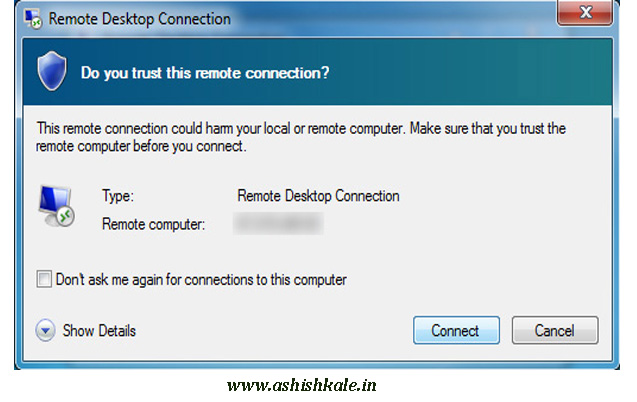
You see a message like the following.
5) select “Don’t ask me again.”
6) Click Connect button
RDC will prompt for your password
Enter the following:
1) Type Username: Administrator
2) Type Password: Password is supplied by your Windows VPS provider.
3) Click Ok button
You should now be connected to your server’s desktop. Please take care to update your Administrator password right away!
The app development industry is evolving at an incredible pace. A decade ago, creating an application required extensive programming knowledge,…
Introduction to Cloud Hosting In today's digital world, website performance can make or break an online business. Whether you run…
In the world of digital marketing, getting attention is only half the battle. The real goal is to convince people…
Introduction In today's digital world, understanding website bandwidth is essential for anyone running a website. Whether you own a blog,…
Artificial intelligence is changing the tech world at lightning speed. From automated chatbots to AI-generated applications, many people are now…